WordPress is Easy
Built by our expert developers, your WordPress site will make managing your website fast, painless, and easy. We put the power to make site updates right at your fingertips. Edit text, change photos and add pages right in your browser.
Table of Contents
What is Content Management?
Content
Throughout this training manual we will refer to the content of your site. Content is a broad term for the images, text, links, and any other interactive element contained within your site. Properly maintained content is the key to optimizing your site’s search engine ranking, giving it a better chance of appearing near the top of search results.
Content Management
Content Management involves making decisions, creating, and organizing content. You can create, edit, move or delete items within your site. We create a structure to get you started, but it takes ongoing effort to rank well in search. Our system is designed to easily aid in this process, and can be accessed from any modern browser, wherever you are.
Good Content
A prime page contains about 500 words, with at least 4 of them being unique keywords used at least 2 to 3 times each, preferably more. A keyword is a word or phrase in your content that makes it possible for people to find your site through a search engine like Google.
Having a few supporting images within the page improves your content. It doesn’t necessarily help for search, but it does help for readability, and to support your text.
Another aspect of optimized content is internal linking. This is when you reference something on one page of your site, and link it to another page of your site. It is important to link the actual words that describe the page you are linking to, as opposed to something like “Click Here”. For example, if you’re referring to your organization’s team, link the word “team” to the Our Team page rather than saying “Click here to learn more.”
Bad Content
Bad content is any combination of too few words, limited use of keywords, few or no images, and outdated information. It is important to monitor your site for these types of weak pages, as they hurt the overall effectiveness of your site. If you find a page like this, try to improve its content instead of removing the page.
Logging In
Logging into WordPress is a fairly simple process.
- WordPress backend management is a short addition to your site’s URL.
- To login, type your username and password in the described fields.
- (If having issues, use the “Lost your password?” system)
- Click the “Login” button.
The Dashboard
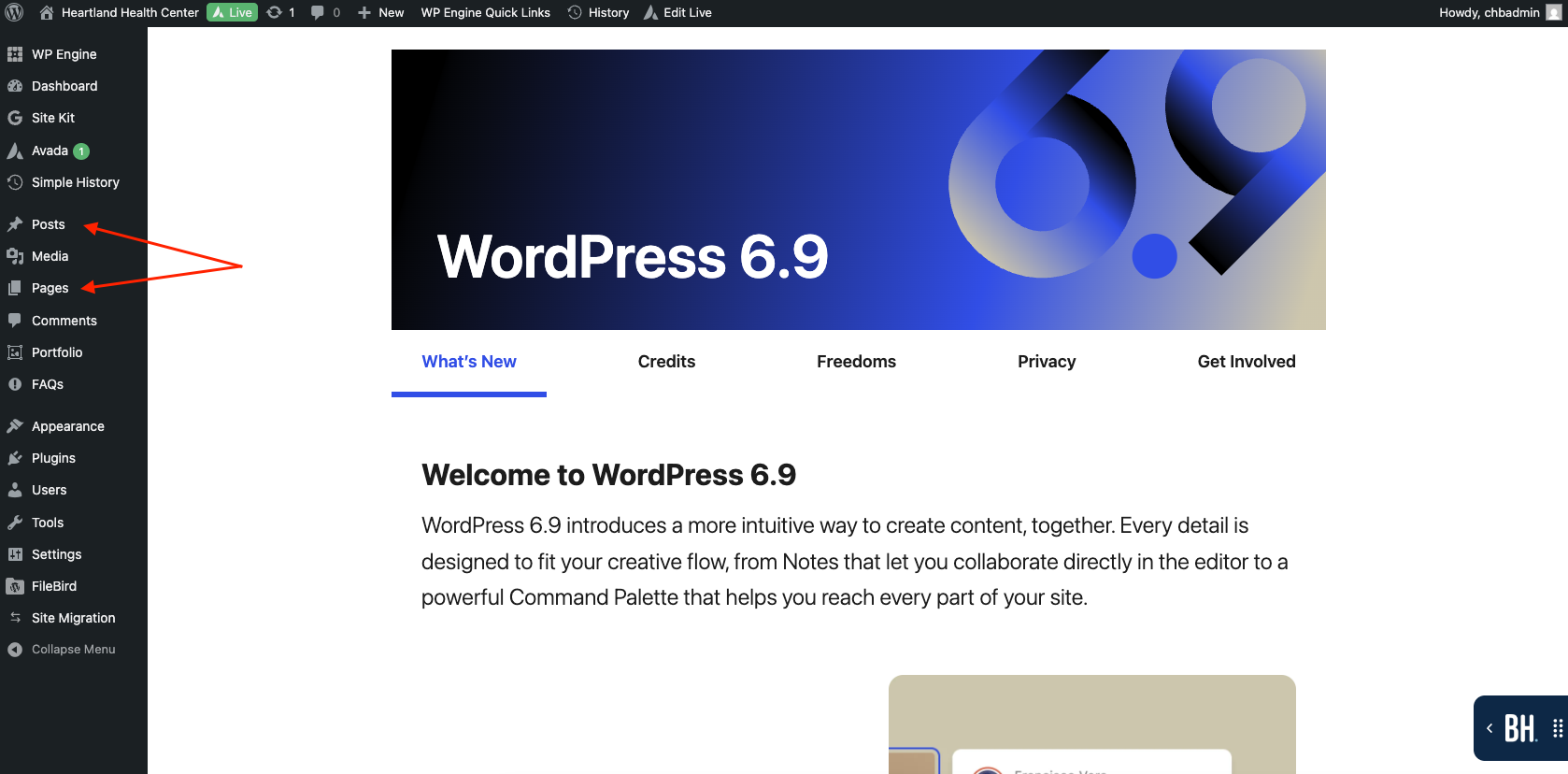
After logging in, you will see the dashboard of your site. This area gives you an overview of your site and access to the intricate workings of the site.
You will mainly be working in the Posts section to manage news content. Other areas you will touch on include Media: To manage images/files in the Library and Pages: to add and update page content.
Basic Page Management
When using the Live Page Editor, you’ll see your website with an editing toolbar along the top and editing icons when you hover over different elements.
Top Toolbar
When editing a page using the Live Builder, you will see a toolbar across the top of the screen. This toolbar contains the main controls for editing, saving, and managing your page.
- Sidebar toggle: opens and closes sidebar
- Library: Allows you to import premade templates, such as buttons and columns.
- Revision History: Allows you to restore a previous version of the page.
- Preferences
- Add New: Create new post or page
- Responsive: view and edit tablet or mobile version
- Preview: View page in full view
- Publish Status: Set as draft or publish
- Save: Save changes
- Exit: Leave editor
Sidebar
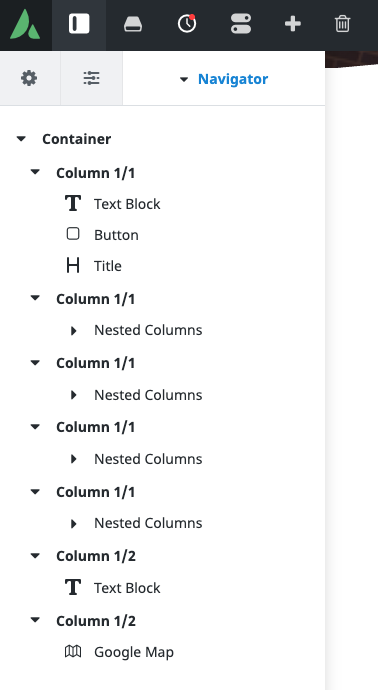
The Sidebar appears on the left side of the screen. This is your main editing panel. It changes depending on what you click on (Container, Column, or Element).
Think of the Sidebar as the “control center” for whatever part of the page you are editing.
Page Settings
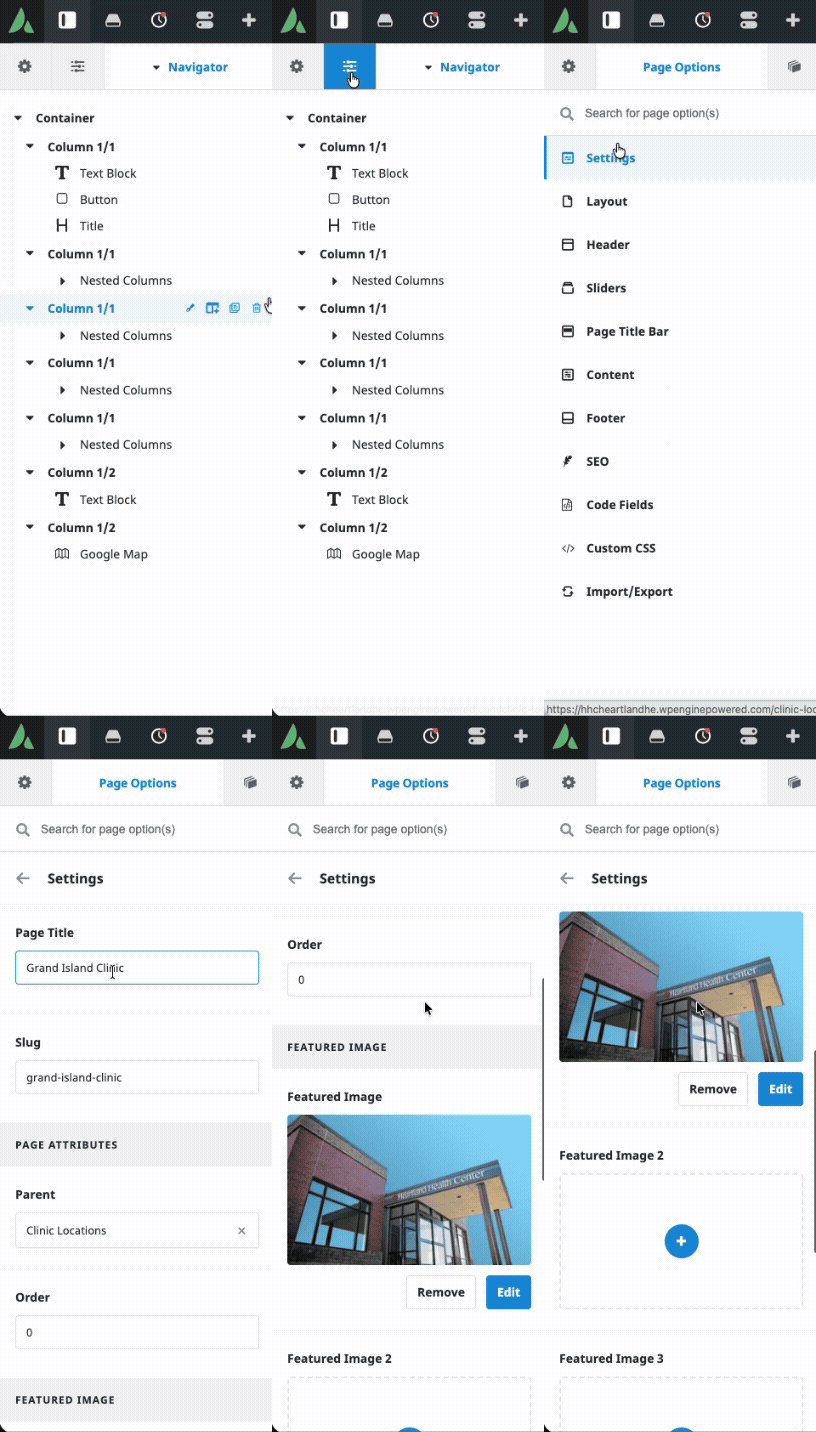
Navigate to the Page Options tab in the sidebar menu and click Settings
- Page Title: The Page Title is the main name of the page.
- Slug: The part of the web address (URL) that comes after your domain name.
- Parent: organizes pages into a hierarchy.
- Example: Leadership is a child page for About, so About is set as the parent.
- Feature Image: It is used as the background image for the Title Bar (the large banner area at the top of the page).
- Use high-quality images.
- Recommended width: 1920px.
- Avoid placing text inside the image (the page title overlays it automatically)
Element Controls
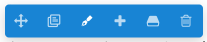
you will see a blue menu bar appear whenever you hover over a page element (such as text, images, buttons, etc.)
- Move Element: Allows you to drag and reposition the element.
- Clone Element: Creates an exact copy of the element directly below the original.
- Useful for cloning provider columns
- Edit Element: Opens the element options in the sidebar.
- Change text
- Replace images
- Update links
- Adjust styling
- Add Element: Adds a new element directly underneath the current one.
- Save Element: Saves the element to your Avada Library
- Delete Element: Removes the element from the page.
Edit Page Text
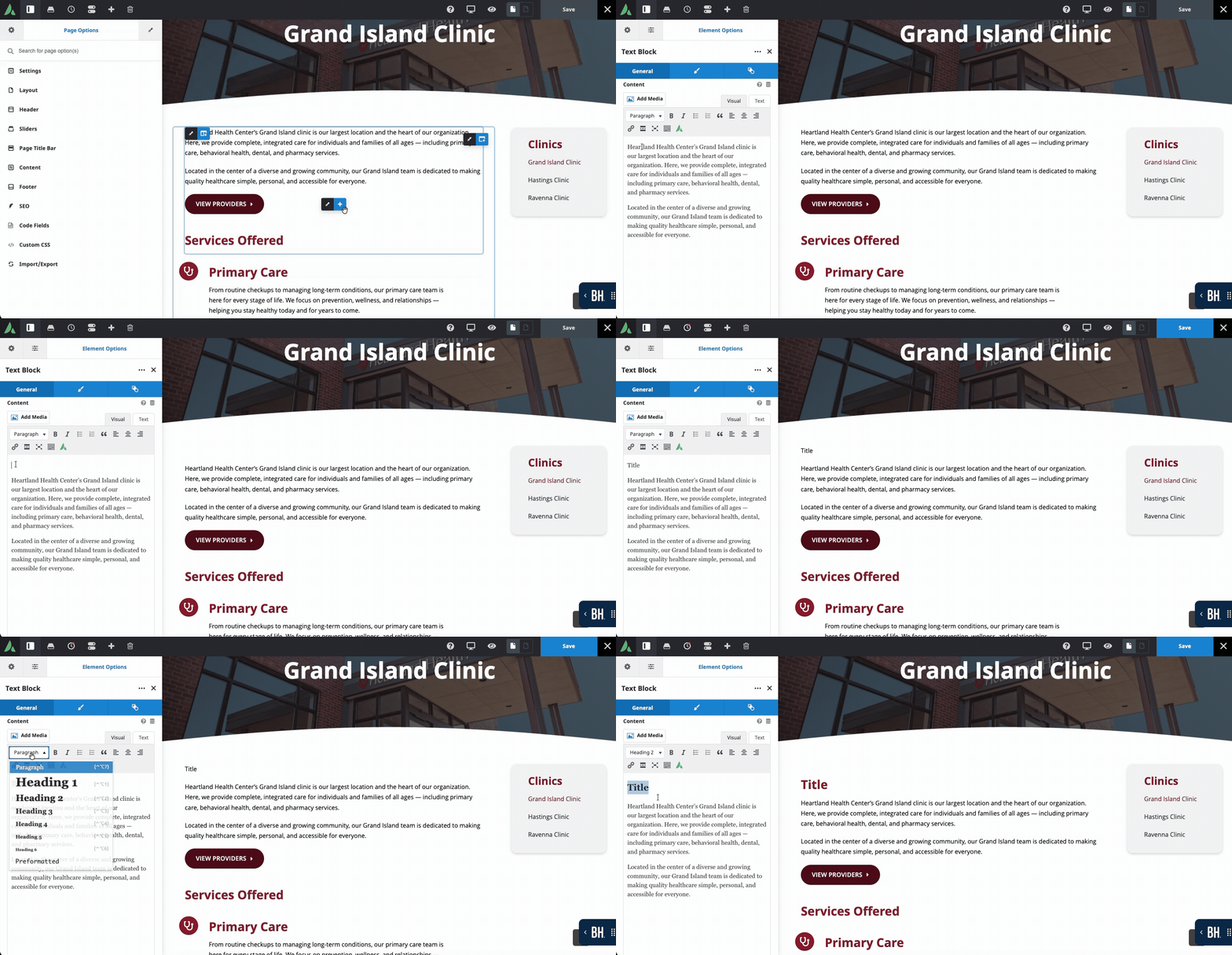
Editing text in the Live Builder is simple and visual — you can click directly on the text you want to change.
Method 1: Click Directly on the Text (Quickest Way)
-
Open the page in Avada Live Builder.
-
Click directly on the text you want to edit.
-
The text will become editable.
-
Type your changes.
-
Click Save at the top of the page when finished.
Method 2: Use the Element Settings Panel
If you need more control:
-
Hover over the text block.
-
Click the blue pencil icon (Edit Element).
-
The Sidebar will open.
-
Make changes in the General tab editing window.
-
Click Save (or close the panel).
-
Click Update/Save at the top of the page.
Use this method if you need to:
-
Add links
-
Format text (bold, headings, lists)
-
Adjust spacing
-
Modify styling
Editing Images
-
Hover over the image you want to replace.
-
Click the blue pencil icon (Edit Element).
-
In the image settings panel, click the edit button to open the Media Library.
-
Choose an existing image or upload a new one from your device.
-
Add Alt text and title
-
Click Insert into Page, then Save.

Adding a Link
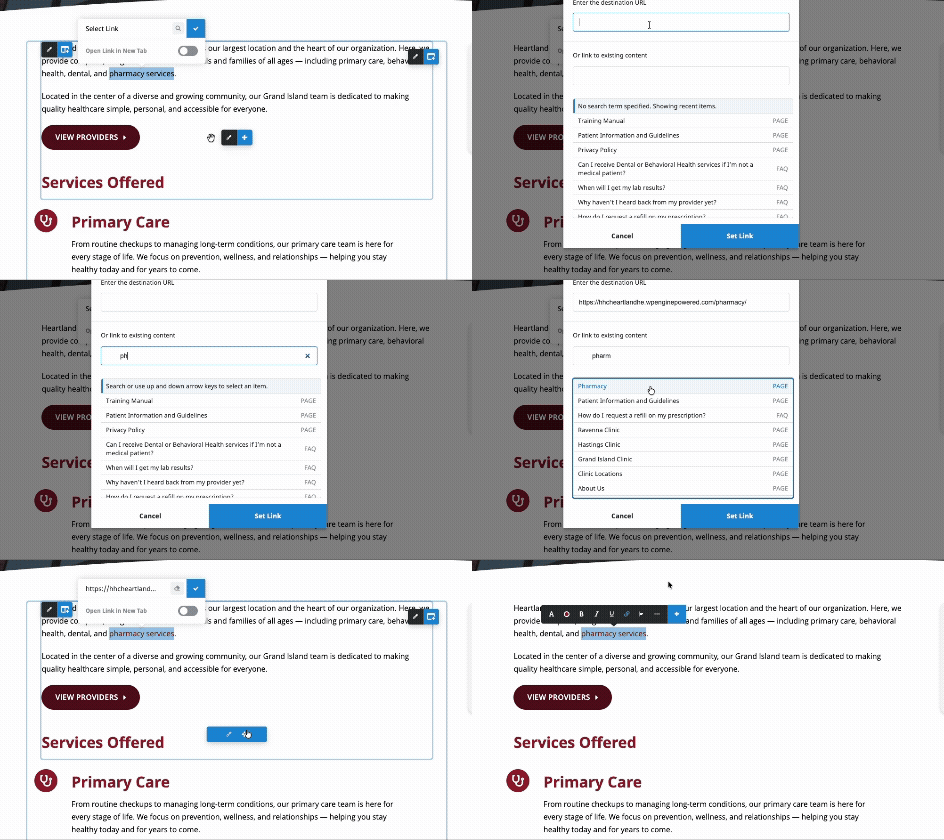
- Highlight the word(s) you want to turn into a link.
- Click the link icon in the text toolbar.
- Paste or type the URL. For internal links, click the search icon.
- Click Set Link.
- External Links (other websites): Open in new tab
Custom Features
Homepage Testimonials
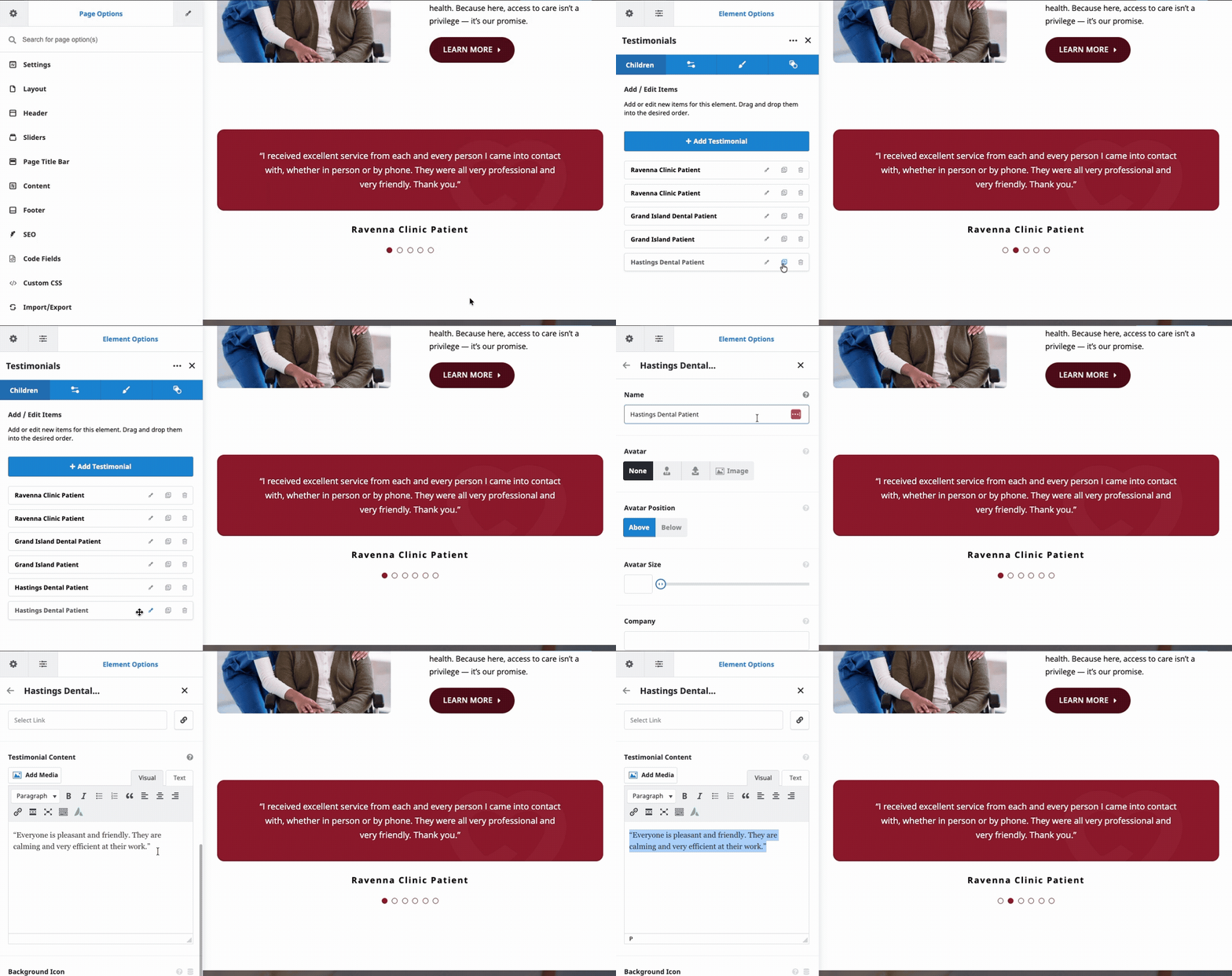
- Navigate to the live editor for the homepage
- Hover over the testimonials element and select the edit (pencil) icon.
- In the left sidebar, you can edit a current testimonial or duplicate it to add another.
Providers / Leadership
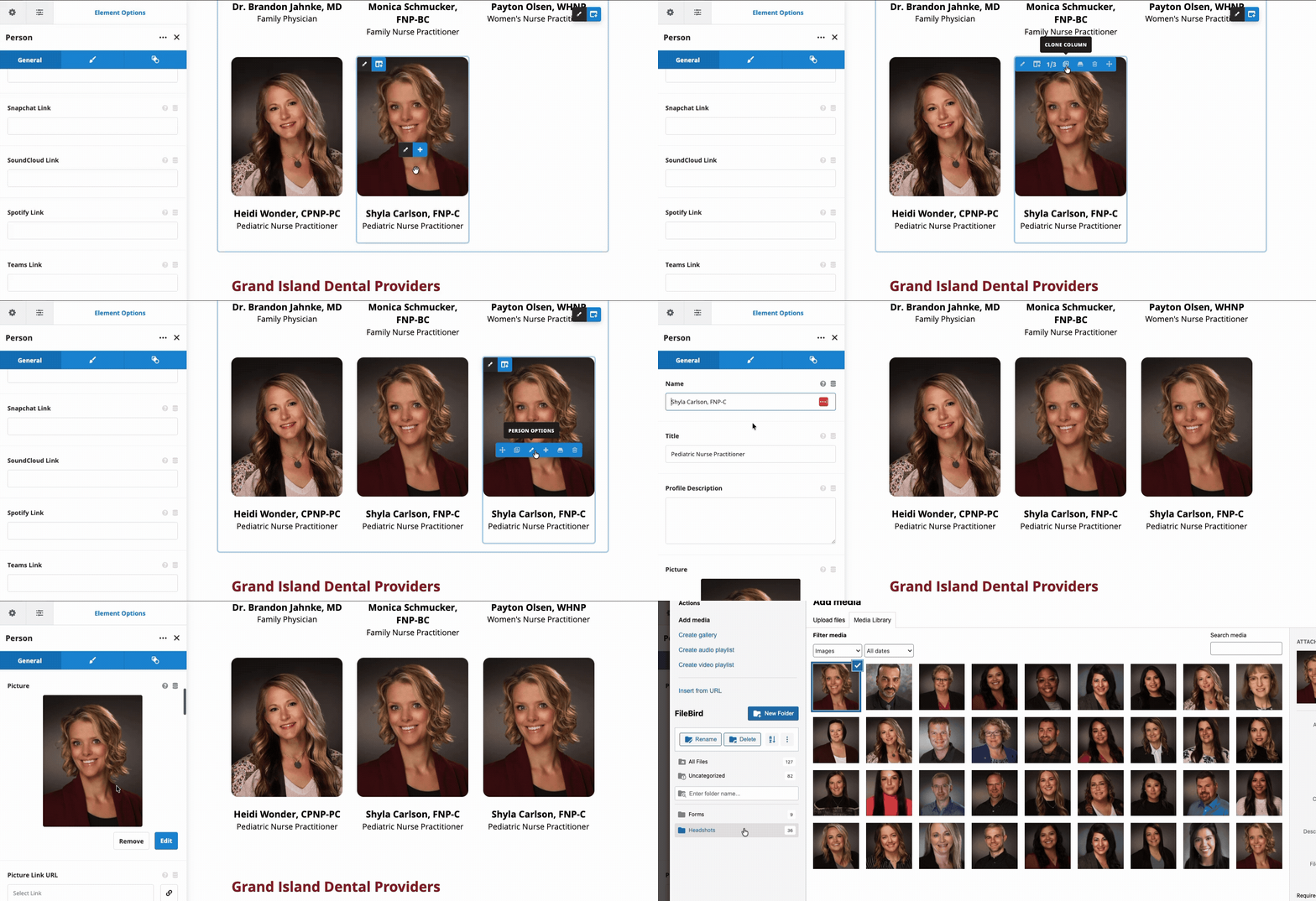
- Hover over a current person
- Hover over the column options in the left corner
- Click clone column to create a new person
- Hover over the person options and click to edit
- Fill out name, title, and image. Image is best prepared at 533 by 800 pixels
Styling
Maintaining consistent styling improves the look, clarity, and professionalism of your website.
Header 1
Header 2
Header 3
Header 4
Header 5
Header 6
Consistent heading use improves readability.
- Avoid using Heading 1 – Reserved for the page title only
- Heading 2– For main sections
- Heading 3 – For subsections
Notes
Quick Edit provides access to change…
- Title
- Slug: URL
- Date: When published
- Parent page
- Order: NA
- Template: Leave as is
- Status: Published, Pending Review, or Draft
Support
Please email support@ideabankmarketing.com for assistance and bug fixes.
Image Preparation
When uploading images to the system, it will automatically adjust the image to web standards.
- If need be, you can crop the image within the system. This will override the original image.
- Images are found in the Dashboard by going to Media > Library.
- Feature Image: 1920px wide
- Providers / Leadership images: 533 by 800 pixels